

Play Improvement
■ SWITCH mode has been added.
1. SWITCH usage environment settings
1) Red Server: Free to use (buffs always applied when connecting to the game)
2) Blue Server: Paid use (Use the storage after purchasing the Switch Scroll)
- Switch Scroll will be included in the Vitality Potion package, along with the Gold Channel admission ticket.
2. SWITCH Mode Overview
1) Provides a smooth multi-client environment by temporarily reducing hardware usage when using the SWITCH mode function.
You can check the character's basic information within the SWITCH mode UI.
3. SWITCH Mode UI
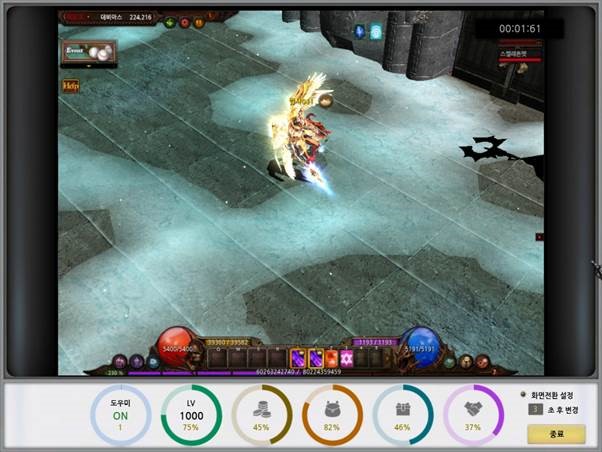
|
SWITCH mode menu configuration |
|
|
type |
explanation |
|
Helper |
It is displayed as ON/OFF depending on whether the helper is running. |
|
Level information |
Displays the character's level and accumulated experience points as a percentage. |
|
Zen |
Displays the character's gen reserves as a percentage. |
|
belongings |
Displays the character's inventory free space as a percentage. |
|
Event Items |
Displays the character's event inventory free space as a percentage. |
|
personal store |
Displays the character's personal shop inventory free space as a percentage. |
|
Game screen image |
It visualizes the game screen and updates the information every set number of seconds. |
|
Image transition settings |
You can change the initial settings for image information refresh. |
|
End button |
This button exits SWITCH mode. |
4. How to start and exit SWITCH mode
1) You can launch and exit the UI with the combination shortcut Ctrl + F.
- Switch mode does not work when the pop-up UI is active.
2) You can exit using the switch exit button in the SWITCH mode UI.
5. SWITCH mode automation options
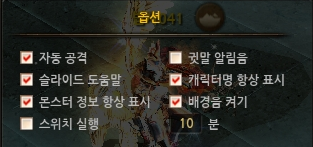
1) An option to automate switch execution is added to the game options window UI.
2) When there is no keyboard/mouse (including pointer movement) input, it switches to SWITCH mode after the set number of minutes.
- Switch auto-run mode does not work when the pop-up UI is activated.
■ The Mu Helper function has been improved.
1. Added automatic repair function

1) A new Repair menu is added to the Helper Acquisition Settings tab.
2) Automatic memory repair only works when the helper is ON.
3) Repairs are automatically performed when the life of the creature is 5 or less.
4) Automatic repairs are only performed while wearing the mask.
5) If you repair manually, you can also repair it in the wearing slot.
6) For automatic repair, you must have a Life Gem in your inventory to use the function.
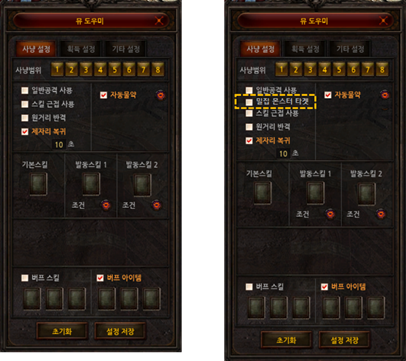
2. Improved Mu Helper target settings
1) When hunting with a Mu Helper, the character selects the closest target.
3. Added Mu Helper target setting
1) If you check the dense monster target, you will select a target in a location where monsters are gathered.
■ A jewel stacking system has been added.
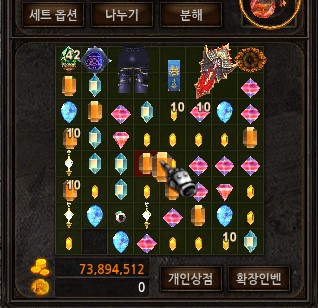
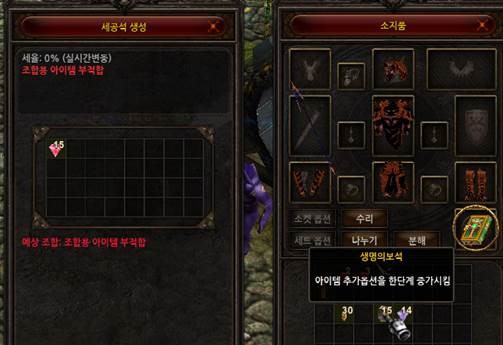
1. Added gem overlapping function
1) Added the ability to stack or split each gem directly in your inventory.
2) Gems acquired after the patch will automatically stack.
3) Stacking or splitting gems no longer consumes Zen.
4) The maximum number of overlaps is also expanded to 50.
2. Improved gem usage content
1) The method of deducting the number of overlapping gems when using most contents has been changed.
2) Some content, such as creating a vacant stone, may require an exact number of gems.
3) Existing gem bundle items will no longer be used.
■ Deposit and withdrawal zones have been expanded.
1. Expansion of the warehouse one-time deposit/withdrawal zone
1) The amount of Zen that can be deposited and withdrawn from the existing warehouse will be expanded from 100 million Zen to 1 billion Zen.
2. Expansion of the Seongju Tax Withdrawal Zone
1) The amount of Zen that can be withdrawn from the existing castle tax will be expanded from 100 million Zen to 1 billion Zen.
■ Trading of Lucky Charms and Chaos Combination Charms has been improved.
1) Improved so that Lucky Charms and Chaos Combination Charms can be traded in personal shops.
■ Ertel of Radiance's Heavenly Punishment Option Damage Limit Setting
1. Set the maximum damage limit for the Heavenly Punishment option.
1) The maximum value of Heavenly Punishment damage is set to 250,000 damage.
■ Quest UI has been improved.
1. Add tabs for each quest type.
1) Depending on the quest's nature, it is divided into [Guide / Job Change / Tutorial / Reward / Repeat] tabs.
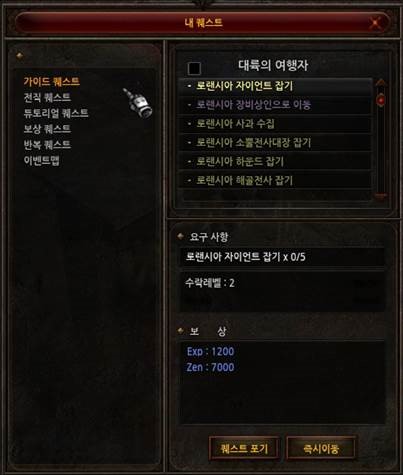
2) An ‘Instant Move’ function has been added to all quests, providing convenience in moving to the quest location after accepting the quest.
2. Improved quest information window
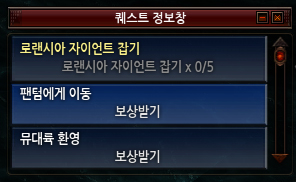
1) The 'Quest Information Window', which previously displayed only one quest, has been improved to display information for up to 20 quests, up to three at a time.
2) When the quest is completed, a ‘Receive Reward’ function is provided, and in the case of quests received through NPCs, the reward will be sent to the NPC’s location.
We will move you. Afterwards, you can receive a reward by talking to the NPC.
3) The number of quests that can be completed simultaneously is limited to 20.
3. Additional quest content
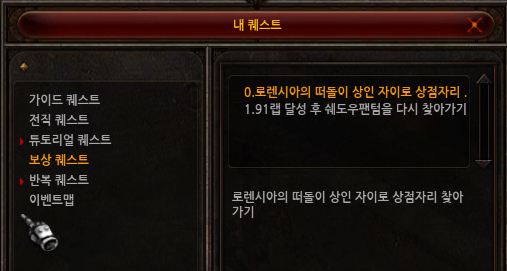
1) Added pre-requisite automatic progress quests
- Added auto-progress quests that introduce you to NPCs with quests you can perform once you reach a certain level.
- When the quest is available, a red triangle will appear on the UI.
2) Changes to some quest content
- The rewards and progress of some quests will change.